← All free tools
POWER BI ACTIVITY REVIEW · FREE · READ-ONLY
Who holds a Power BI license and has not used it?
Power BI Pro and Premium Per User are often bought for a project and never taken back. This tool shows who holds one and has not used Power BI recently.
WHAT IT LOOKS AT
- Everyone who holds a standalone Power BI Pro or Premium Per User license
- License holders with no Power BI activity in the last 28 days
HOW IT WORKS
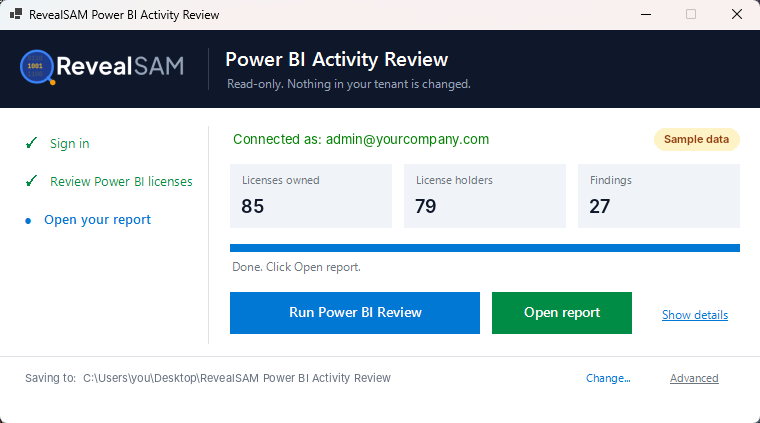
- Download the tool and double-click the launcher. There is no installer.
- Sign in and click Run. One sign-in to Microsoft 365. A second sign-in to Power BI follows only when standalone licenses are found.
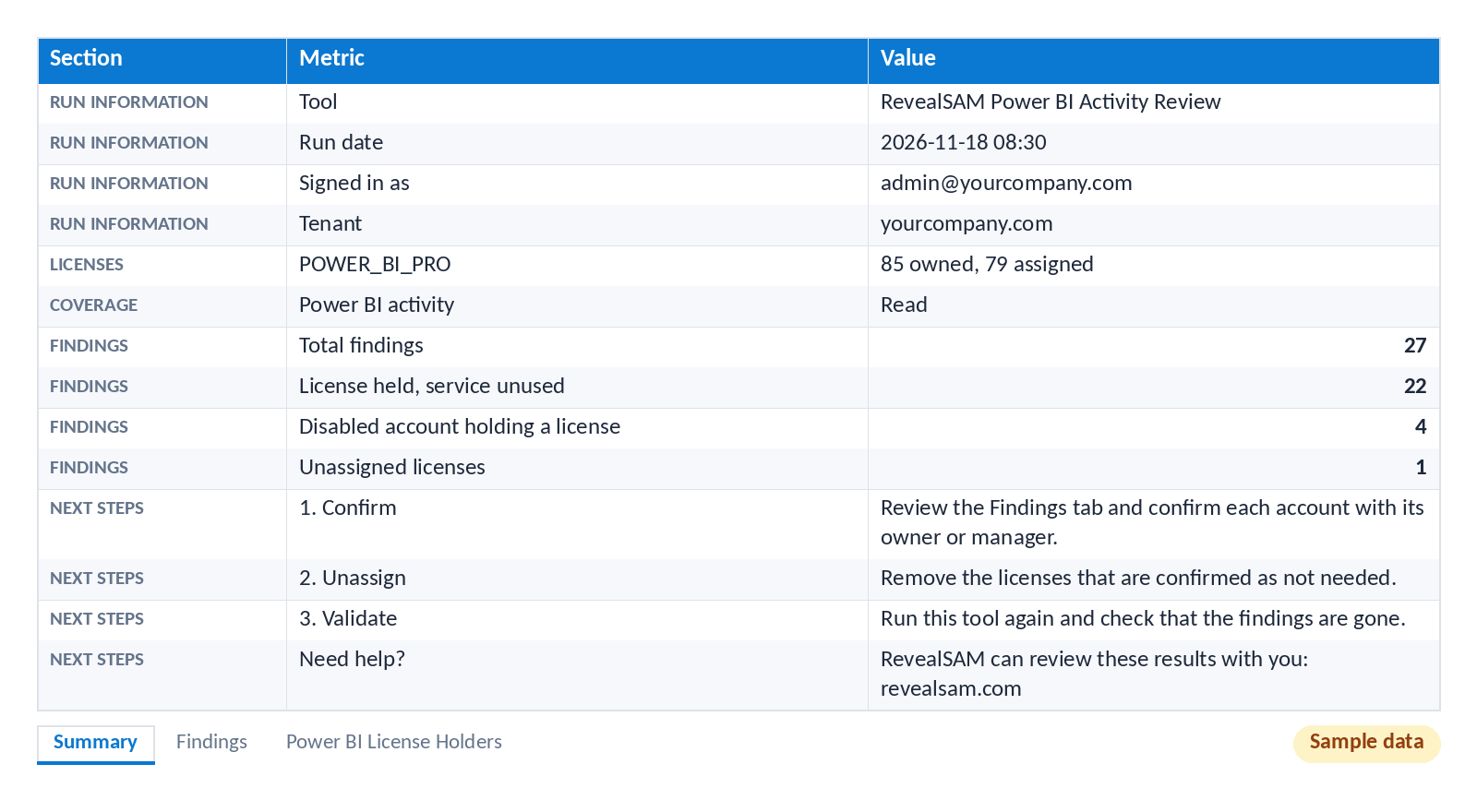
- Open your report. One Excel workbook with a summary, the findings, and the license holders with their activity.
WHAT YOU NEED
- A Windows computer. The first time, the tool may add Microsoft's own PowerShell modules to it.
- An account with this role: Global Reader, and Fabric Administrator to read activity
- Your approval when Microsoft asks to grant read-only access.
GOOD TO KNOW
- Power BI Pro that comes inside a larger license, such as Microsoft 365 E5, is not reviewed.
- Microsoft keeps about 28 days of Power BI activity, so that is as far back as the tool can look.
- If your organization has a Fabric capacity of F64 or larger, people who only view reports do not need a Pro license. This tool reports who holds a license and has not used Power BI. It does not check whether an active user could do without one.
- A black PowerShell window appears for a moment when the tool starts, then hides. If something goes wrong it comes back and shows what happened, which helps with troubleshooting.
- The tool reads from your tenant and changes nothing. The report and a run log are saved to a folder on your Desktop and go nowhere else.
After you run it
- Confirm. Check the findings with the people who know the accounts.
- Act. Make the changes you are sure of.
- Validate. Run the tool again and see that the findings are gone.
What the report does not do. It does not tell you what to change, what a change is worth, or how to approach Microsoft. That is the work I do with clients.
Want a second set of eyes on the findings?
I see the same patterns in many of the organizations I work with, and I can usually tell you quickly which findings matter. The first hour is free.